
How to Detect Mouse Jiggler Activity on Work Devices
 Kapil Garg |
Updated: April 24, 2026
Kapil Garg |
Updated: April 24, 2026
- What Is a Mouse Jiggler and Why It Matters
- Types of Mouse Jigglers to Watch For
- Warning Signs of Mouse Jiggler Activity
- How to Detect Mouse Jiggler Activity Step by Step
- How Clockdiary's Activity Tracker Helps You Spot Fake Activity
- Best Practices for Responding Without Breaking Trust
- FAQs
- Final Thoughts
- What Is a Mouse Jiggler and Why It Matters
- Types of Mouse Jigglers to Watch For
- Warning Signs of Mouse Jiggler Activity
- How to Detect Mouse Jiggler Activity Step by Step
- How Clockdiary's Activity Tracker Helps You Spot Fake Activity
- Best Practices for Responding Without Breaking Trust
- FAQs
- Final Thoughts
If your team looks perfectly productive on paper but deliverables keep slipping, something might be off. Mouse jigglers, those small devices and apps that keep a cursor moving while no one is at the keyboard, have become one of the quietest ways employees fake activity on work devices. Learning how to detect mouse jiggler activity on work devices is now a core skill for any manager who relies on digital signals to understand what their team is actually doing.
This trend exploded during the shift to remote work, and it has not slowed down. In 2024, Wells Fargo fired more than a dozen employees in its wealth and investment management division after a review of allegations involving the simulation of keyboard activity that created the impression of active work. The story reignited a debate that is still very much alive in 2026: how do you trust activity data when a $20 gadget can fake it?
The good news is that mouse jigglers leave clear behavioral fingerprints once you know what to look for. In this guide, you will learn how they work, the signs that give them away, and the exact steps and tools (including Clockdiary's Activity Tracker) that help you separate real work from simulated clicks without turning your workplace into a surveillance state.
Key Takeaways
- Mouse jigglers come in two main forms, hardware devices and software apps, and both leave behavioral patterns that modern activity tracking tools can flag.
- The strongest detection signals are repetitive cursor motion, mouse movement without keyboard input, and a mismatch between logged activity and actual deliverables.
- USB jigglers show up in system logs, while software jigglers are visible in installed apps, running processes, and application audits.
- Clockdiary's Activity Tracker combines random-interval screenshots, active versus idle time data, and app and website usage reports to spot fake activity in context.
- The best response is not punishment first but fixing the root cause: unclear expectations, rigid status checks, and metrics that reward movement over outcomes.
What Is a Mouse Jiggler and Why It Matters
A mouse jiggler is a tool, either a small hardware device or a software app, that simulates cursor or keyboard activity so a computer never registers as idle. It keeps status indicators green, prevents screen locks, and stops inactivity timers from ticking over. Used honestly, it is a convenience. Used to deceive, it becomes a form of time theft that quietly distorts every metric your business relies on.
The market for these tools has boomed alongside remote and hybrid work. Basic USB jigglers retail for around $20, while devices that simulate keyboard activity cost closer to $60. Dozens of software versions are available as free downloads or browser extensions. When activity is treated as a proxy for productivity, even a cheap gadget can blur the line between working and pretending to work.
How mouse jigglers work
Every operating system runs an inactivity timer that resets whenever it detects input from a mouse or keyboard. A mouse jiggler sends tiny, repeated movement signals at fixed or slightly randomized intervals, usually every few seconds or minutes, so that timer never reaches the threshold that would trigger an "away" status, sleep mode, or screen lock.
Software jigglers do this by calling operating system APIs that inject cursor movement. Hardware jigglers either plug into a USB port and register as a standard mouse, or they physically nudge a real mouse using a small motorized platform. Either way, the result is the same: the operating system sees activity and reports the user as present, even when the seat is empty.
Why employees use them
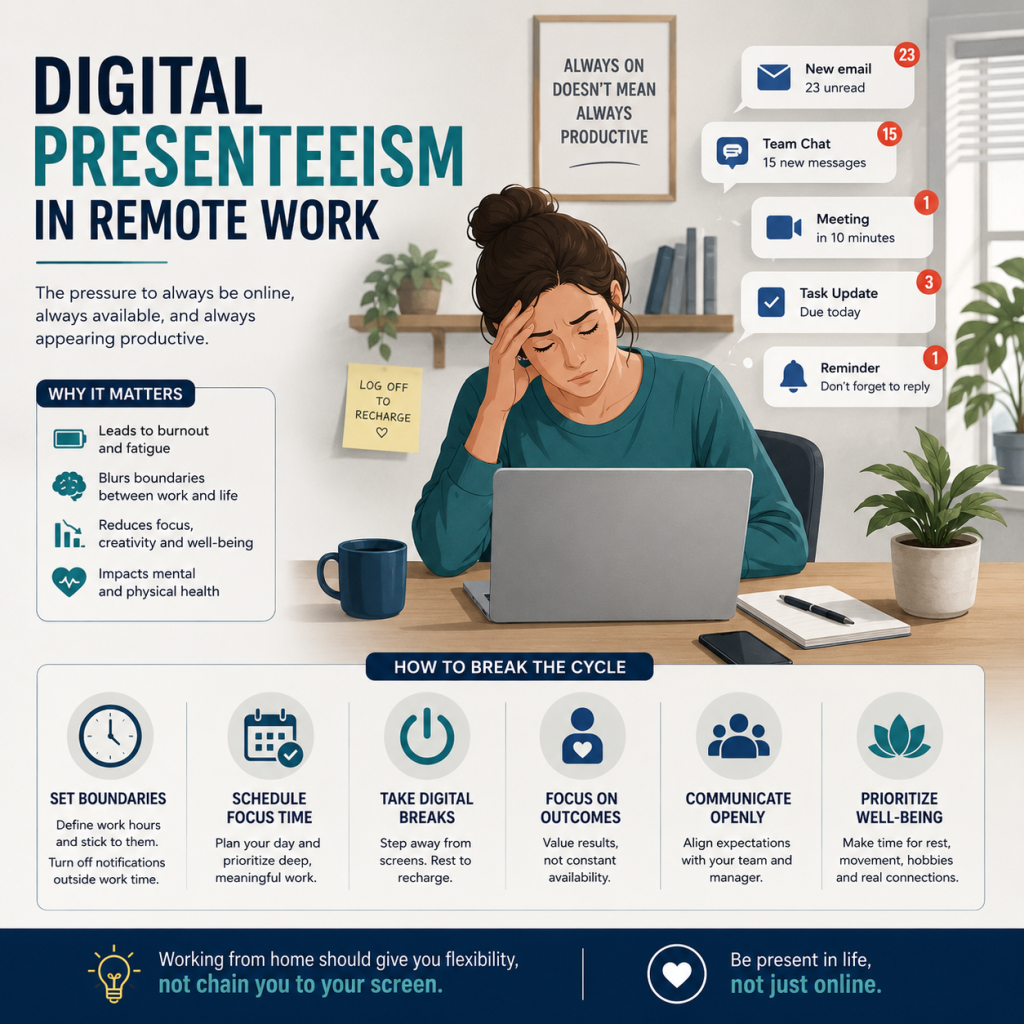
Not everyone who uses a mouse jiggler is trying to steal time. Many remote workers reach for them because their monitoring setup punishes normal human behavior, such as reading a document, taking a short break, or being on a phone call away from the desk. In a 2025 survey, 49% of remote employees admitted to faking being online, 31% reported using anti-tracking tools, and 25% said they resort to hacks to avoid constant scrutiny.
That said, the consequences are serious even when intent is innocent. If your activity data is polluted by simulated input, you cannot trust your productivity dashboards, payroll calculations, or performance reviews. That is why detection is not about catching people; it is about restoring signal integrity so you can make good decisions about your team.
Types of Mouse Jigglers to Watch For
Before you can detect mouse jiggler activity on work devices, you need to know what you are looking for. Jigglers fall into two broad categories, and each one leaves different traces. Knowing which type you are dealing with changes the detection approach completely.
Hardware mouse jigglers
Hardware jigglers are physical gadgets you can hold in your hand. They became popular with remote workers because they require no installation and leave no obvious footprint on the operating system. There are two common styles, and each one behaves a little differently.
USB-based jigglers
A USB jiggler plugs into any available USB port and registers with the operating system as a human interface device, essentially pretending to be a regular mouse. It then sends subtle, timed movement signals automatically. These are convenient for the user because nothing needs to be installed, but they are also the easiest hardware type to detect. Any IT team with basic endpoint monitoring can pull a log of connected USB devices and flag anything unfamiliar.
Non-USB mechanical jigglers
Mechanical or motorized jigglers are small platforms that physically move a real mouse, usually in a slow circular or back-and-forth motion. Because they do not interface with the computer at all, they leave no USB log and no software trace. However, they still produce an unnatural movement signature: perfect circles or straight lines repeated at regular intervals. Detection tools now flag cumulative angle changes of 340 to 360 degrees (near-circular paths) and unnaturally constant movement speeds, both of which are rare in human cursor use.
Software mouse jigglers
Software jigglers are apps, scripts, or browser extensions installed directly on the work device. Once running, they sit in the background and generate simulated cursor movement using operating system APIs. Some offer stealth features that rename processes or hide icons from the taskbar, but they still appear in process listings, installed application inventories, and scheduled task records.
If your company enforces strict policies against installing unauthorized software, employees will find it harder to use this category. Many software jigglers are free downloads from the open web, which means they often trip endpoint protection tools before they ever run. Software versions also tend to create more consistent mechanical patterns than hardware versions, which makes behavioral detection more reliable.
Quick tip. If you manage remote teams, assume both types exist in the wild. Hardware jigglers are more common with employees who cannot install software on locked-down devices. Software jigglers are more common with employees on personal devices or bring-your-own-device setups.
Warning Signs of Mouse Jiggler Activity
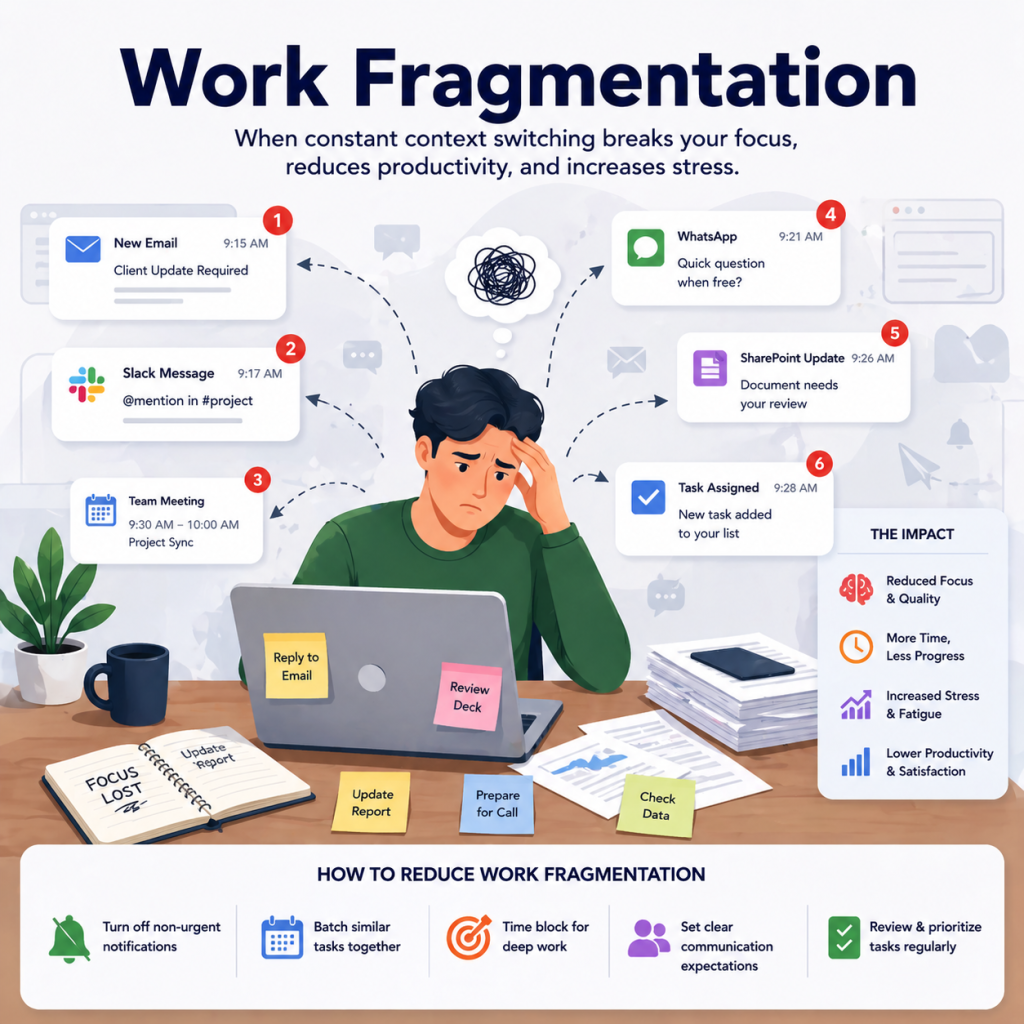
The quickest way to know whether a jiggler is in use is to stop looking for the device itself and start looking at the patterns it produces. Human beings are wonderfully messy. We pause, switch apps, scroll, click unpredictable things, then go quiet for a minute. A jiggler cannot reproduce that. It produces activity that is either too consistent, too quiet, or too disconnected from any real work.
Behavioral red flags in activity data
Real work generates a natural mix of input types. If your activity logs show mouse movement that keeps ticking over while every other signal stays flat, something is off. Here are the patterns that most often reveal a mouse jiggler:
- Mouse activity with zero keyboard input for long stretches. A working session almost always includes some typing, even if it is just writing a Slack reply or naming a file.
- Perfectly timed cursor motion. Movements every 30 or 60 seconds, like clockwork, with no gaps.
- Repeated loops or back-and-forth patterns. A mouse that traces the same rectangle, circle, or jitter over and over.
- Constant "active" status on Slack or Teams with no corresponding app switching or file access.
- Zero idle time across an entire workday. Real humans take water breaks, bathroom breaks, and short walks. Eight straight hours of uninterrupted activity is a red flag, not a badge of honor.
Unnaturally consistent mouse patterns
Automated mouse movement has a signature that shows up clearly when you measure it. Detection tools calculate the coefficient of variation for movement speeds; when it drops below 15%, the cursor is almost certainly being driven by a machine rather than a human. They also track cumulative angle changes and count directional reversals. A real user's cursor does not retrace the same 45-degree arc every 60 seconds for an hour.
Output and deliverable mismatches
The loudest signal is the one that does not require any specialized software. It is the gap between what someone appears to be doing and what they actually deliver. If a team member logs eight active hours per day but their tickets, commits, call notes, or documents do not match that effort, activity data alone is telling you a story that the work output is contradicting.
When you see that gap, you don't always need to assume malice. Sometimes it points to unclear expectations, a task that is harder than scheduled, or burnout. But it always deserves a conversation. The goal is to replace guesswork with context, which is exactly where a good activity tracker earns its keep.
How to Detect Mouse Jiggler Activity Step by Step
Detection works best as a layered process. No single signal is conclusive, but combining a few of them creates a pattern that is hard for any jiggler to hide behind. Here is a practical five-step workflow you can apply to any team using work-issued devices.
The five-step detection workflow
These five checks form a layered approach. Each one on its own can produce false positives, but running all five together makes simulated activity very hard to hide.
-
1
Review mouse and keyboard ratios
Pull your activity data and look at the balance between mouse and keyboard events. A healthy working session has both. Long windows of pure mouse movement with no typing are the single most reliable indicator of a jiggler. Most modern activity tracking tools can visualize this ratio on a daily or hourly basis.
-
2
Inspect installed apps and USB logs
Run a quick audit of installed applications and scheduled tasks on the device. Look for programs with generic names like "MouseMover," "Caffeine," or anything you do not recognize. At the same time, pull USB connection logs from your endpoint management tool and flag any unauthorized HID device that shows a suspiciously short list of endpoints.
-
3
Cross-check screenshots with activity data
If your monitoring setup takes random-interval screenshots, compare them against periods of reported activity. Screenshots showing a static document, a locked-looking app, or an unchanged screen during logged "active" time are a strong indicator of simulated input. This is where tools like Clockdiary's Activity Tracker shine, because the screenshots happen automatically in the background.
-
4
Compare output with logged hours
Set a recurring weekly review where you line up logged hours against actual deliverables: tickets closed, calls made, documents drafted, code merged. The people whose output consistently lags their hours are the ones worth looking at more closely, regardless of whether a jiggler is involved.
-
5
Set automated alerts for repetitive patterns
The best activity tracking platforms let you configure alerts for specific patterns: high-duration single-screen activity, repetitive input, or unusually low idle time. Turn these on for the team as a whole, not for individuals, and use them as prompts for conversations rather than instant punishment.
How Clockdiary's Activity Tracker Helps You Spot Fake Activity
Detecting mouse jiggler activity does not require a dedicated "jiggler hunter" app. It requires an activity tracker that captures enough context for artificial input to stand out naturally. Clockdiary's Activity Tracker is built around that idea. Instead of obsessing over one metric, it gives you several overlapping layers of data that together make fake activity very hard to sustain.
Screenshot verification at random intervals
Clockdiary captures random-interval screenshots every 10 minutes while the tracker is running. Because the interval is randomized, employees cannot time their activity around it, and because the images are tied to the same session as the mouse and keyboard data, you can line them up side by side. If an employee's session shows 45 minutes of logged activity but every screenshot displays the same static document or an idle-looking app, that gap tells its own story without you having to inspect a single USB port.
Active versus idle time insights
The tracker separates active time (input detected) from idle time (no input) and reports both. AI Smart Screen Insights layer on top of this, surfacing periods where work hours were logged but no meaningful on-screen activity took place. This matters for jiggler detection because a pure jiggler setup tends to produce a strange pattern: active time stays artificially high while the screen itself shows almost no actual work happening. The contrast is exactly what you need to investigate further, and it shows up without any manual log-diving.
App and website usage reports
Activity Tracker also logs which applications and websites employees spend time on during tracked hours. This gives you a third signal to cross-reference. When reported active time is high but the app usage report shows the user has been sitting on the same window for hours, or nothing meaningful at all, you have context that cursor motion alone cannot provide. For managers, this is the difference between suspicion and evidence; it is also the difference between a productive coaching conversation and an accusation that damages trust.
Why this matters. Clockdiary does not chase fake activity with intrusive surveillance. It gives you enough honest context, screenshots, active and idle time, app and website usage, that simulated input simply cannot hide behind the numbers.
Best Practices for Responding Without Breaking Trust
Detecting a mouse jiggler is the easy part. Responding in a way that actually improves your team's culture is the harder one. The Wells Fargo firings made headlines because they highlighted a bigger problem: when employees feel micromanaged, they innovate around the controls rather than raising concerns. If you lead with punishment, you will catch a few people, but you will also lose the trust of everyone else.
Address the root cause first
Before you send a warning or fire anyone, ask what is pushing people to fake activity in the first place. Common culprits include rigid status-based evaluations, long windows of legitimate passive work that get flagged as idle, and communication platforms where a yellow status triggers messages from anxious managers. If employees feel they have to look busy to survive, they will find a way. Fixing the underlying metric often removes the problem entirely.
Set clear, outcome-based policies
Write down what counts as acceptable productivity and what does not. Make it outcome-first: tickets closed, projects shipped, goals met, rather than mouse movements per hour. Then publish an acceptable use policy that explicitly names mouse jigglers and similar tools as prohibited, and explain why the policy exists. Transparency here is not optional; 85% of workers surveyed by Owl Labs in 2025 said employers should disclose if they are using monitoring tools. The same principle applies to the rules you use that data to enforce.
From there, use activity data as one signal among many. Combine it with deliverables, peer reviews, and one-on-one conversations. That combination is what turns monitoring from surveillance into support, and it is the only sustainable way to keep fake activity out of your workplace for good.
Frequently Asked Questions
Q: Can employers legally detect mouse jiggler activity on work devices?
In most jurisdictions, yes, as long as employers disclose their monitoring practices. In the EU, GDPR requires clear consent and transparency. In the United States, some states like New York require explicit disclosure for digital monitoring. As a rule, detection is legal on employer-owned devices with a written acceptable use policy in place.
Q: What is the easiest way to detect a mouse jiggler?
Look for a mismatch between logged activity and actual work. Repetitive mouse movement without corresponding keyboard input, app switching, or deliverables is the single strongest signal. A good activity tracker that captures screenshots, active time, and app usage gives you all three checks in one place.
Q: Are hardware mouse jigglers undetectable?
No. While physical mouse movers are harder to catch than software versions, they still produce unnatural movement patterns, such as near-perfect circles, constant speeds, and repetitive loops, that modern activity tracking tools can flag. USB jigglers also show up in system logs, which makes them easy to spot with basic endpoint monitoring.
Q: What is the difference between a mouse jiggler and keyboard jamming?
A mouse jiggler simulates cursor movement, while keyboard jamming sends repeated keystrokes to mimic typing. Both aim to create fake activity. Modern monitoring tools detect both by analyzing input patterns, app usage, and whether the on-screen activity matches the reported input.
Q: Should I fire an employee caught using a mouse jiggler?
Not as a first response. Start by understanding why they used it. If it was to avoid unfair idle flags during legitimate passive work, fix the metric. If it was to mask extended absences or outright time theft, follow your acceptable use policy and document the pattern, not just a single incident. A fair process protects both the employee and the company.
Q: Can Clockdiary detect mouse jigglers specifically?
Clockdiary's Activity Tracker does not hunt for jiggler devices by name. Instead, it surfaces the behavioral patterns that jigglers create: high active time with static screenshots, mouse motion without app engagement, and long stretches with no meaningful work. When you line those up, simulated input becomes obvious.
Q: Why do employees use mouse jigglers even when they are working honestly?
Many employees use jigglers to avoid being flagged as idle during legitimate passive work, like reading, phone calls, or brainstorming. They also worry that brief breaks will be held against them in performance reviews. The fix is usually cultural: move away from activity-only metrics and toward outcomes, and people will stop feeling the need to game the system.
Final Thoughts
Mouse jigglers are a symptom of a deeper measurement problem. When activity becomes a proxy for productivity, people will find ways to produce activity without producing work. The fix is not an arms race of better surveillance versus sneakier gadgets. The fix is better data and a better conversation about what counts as real output.
Learning how to detect mouse jiggler activity on work devices is a useful skill, but it is only the beginning. Pair detection with transparent policies, outcome-focused goals, and an activity tracker like Clockdiary that gives you enough context to separate signal from noise. Do that, and you will spend less time chasing fake clicks and more time helping your team do work they are proud of.