Find everything you need to get started with Clockdiary—learn about projects, teams, time tracking, and more.
View Categories
How to Cancel Your Subscription
Overview
Clockdiary gives you the flexibility to cancel your paid subscription anytime. Whether your team is scaling down or you simply want to switch back to the Free Plan, the process is simple and transparent.
This guide explains how cancellation works, what happens afterward, and how to ensure a smooth transition to the Free Plan.
How to Cancel Your Subscription
Log in to your Clockdiary workzone.
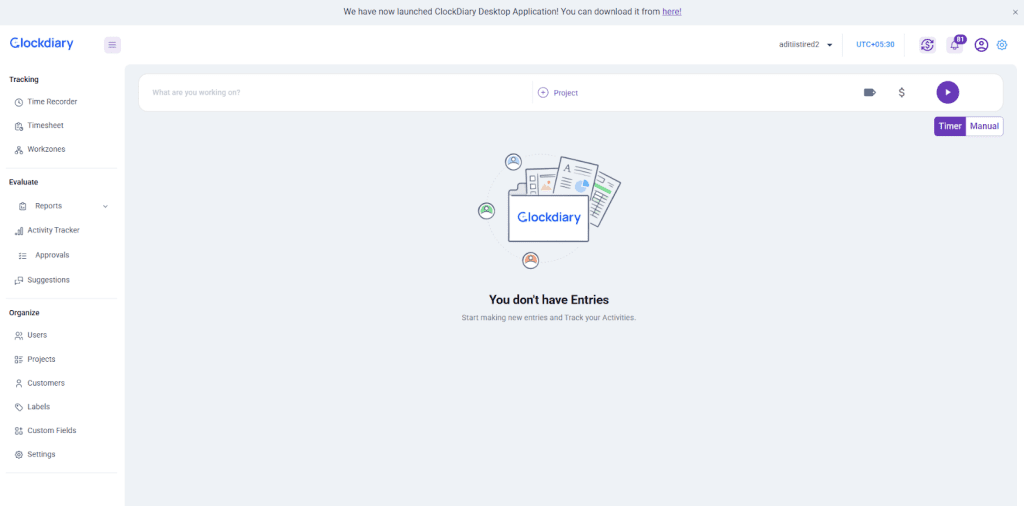
Click the Subscription icon in the top right corner of your dashboard.
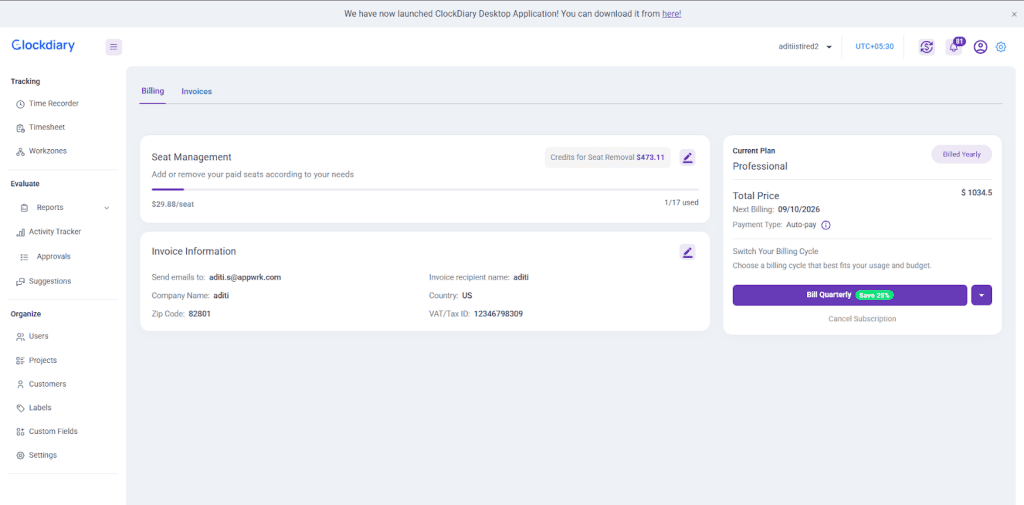
On the Subscription Page, open the Billing tab.
Scroll down to the Cancellation section and click Cancel Subscription.
Confirm your cancellation to complete the process.
After cancellation, your subscription remains active until the end of the current billing cycle. Once it ends, your workzone automatically transitions to the Free Plan (as long as it meets the Free Plan limits).
When Cancellation Takes Effect
Your subscription will stay active until your current billing cycle ends.
You can continue using all paid features during this time.
Once the cycle is complete, your workzone automatically moves to the Free Plan, provided it meets the plan’s usage limits.
Free Plan Transition
After cancellation, your workzone must fall within the Free Plan limits to transition successfully. The Free Plan includes:
Up to 10 active users
Up to 10 projects
Up to 10 teams
Up to 3 custom fields
If your workzone exceeds any of these limits, the cancellation won’t complete. You’ll need to adjust your workzone before it can move to the Free Plan.
If the owner already has another free workzone, the current workzone will be frozen upon cancellation, as each user can own only one free workzone.
Withdrawing a Cancellation
Changed your mind after initiating a cancellation? No problem. You can withdraw your cancellation request anytime before the billing cycle ends. Simply go back to the Billing tab and click Withdraw Cancellation to restore your active subscription.
Cancellation Policy
Each workzone owner is allowed one Free Workzone.
The workzone being cancelled must meet the Free Plan limits at the time of cancellation.
If the workzone exceeds those limits, the cancellation will not go through.
Cancellations can’t be made during the last 5 days of your billing cycle. You’ll be able to cancel once your new cycle begins.
What Happens If Your workzone Exceeds Free Plan Limits
If your workzone doesn’t meet the Free Plan requirements, it will enter a Frozen State instead of transitioning to free.
In Frozen State:
Edit access and time tracking are disabled.
You can still manage and reduce your workzone usage (for example, remove users, teams, or projects).
Once your workzone is within Free Plan limits, it will automatically reactivate and switch to the Free Plan.
Key Takeaways
You can cancel your paid subscription anytime from the Subscription → Billing page.
The subscription remains active until the end of the billing cycle.
workzones must meet Free Plan limits to switch successfully.
Each owner can only have one Free Workzone.
If limits are exceeded, the workzone enters a temporary Frozen State until adjusted.
You can withdraw your cancellation anytime before the billing cycle ends.