Find everything you need to get started with Clockdiary—learn about projects, teams, time tracking, and more.
View Categories
How to Upgrade Your Plan in Clockdiary
Overview
Clockdiary offers flexible subscription plans designed to fit every team size and workflow. Upgrading your plan gives your workzone access to advanced features, unlimited projects, and better control over team management and billing.
This article explains how to upgrade your plan step by step, how billing works during upgrades, and what benefits you gain after switching.
Benefits of Upgrading
When you upgrade your Clockdiary workzone to a paid plan, you unlock a range of benefits:
Unlimited Access: Add unlimited projects, users, and teams without restrictions.
Transparent Billing: Pay only for active user seats with simple, predictable pricing.
Fair Proration: If you upgrade mid cycle, you only pay for the time and seats you actually use.
Team Coverage: All active members in your workzone are included automatically.
Flexible Management: Add or remove seats any time based on your team’s needs.
💡 Note: Upgrade costs are calculated based on the number of active users in your workzone, regardless of their roles or activity.
How to Upgrade Your Plan
Follow these steps to upgrade your plan in Clockdiary:
1. Log in to your Clockdiary workzone with https://app.clockdiary.com/login.
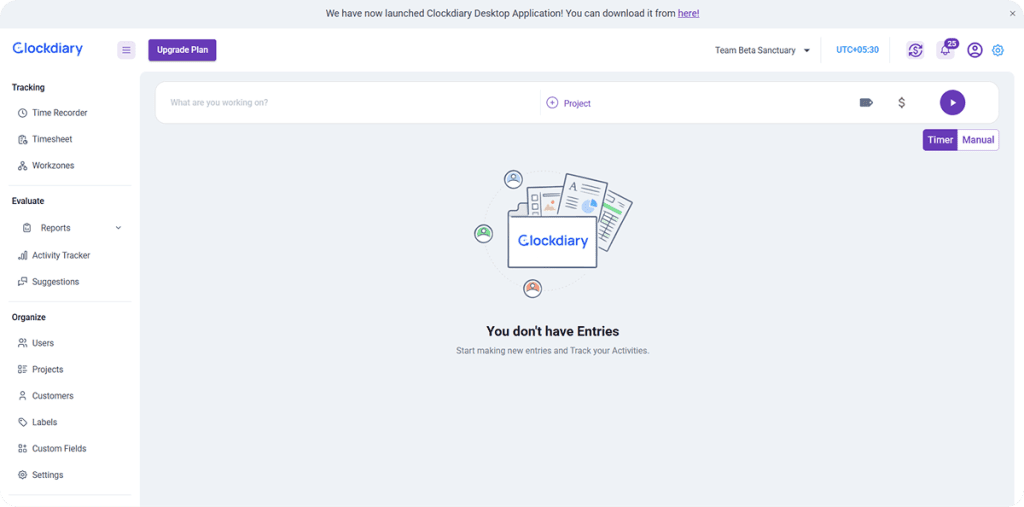
2. Click the Subscription icon {$} in the top right corner of your dashboard.
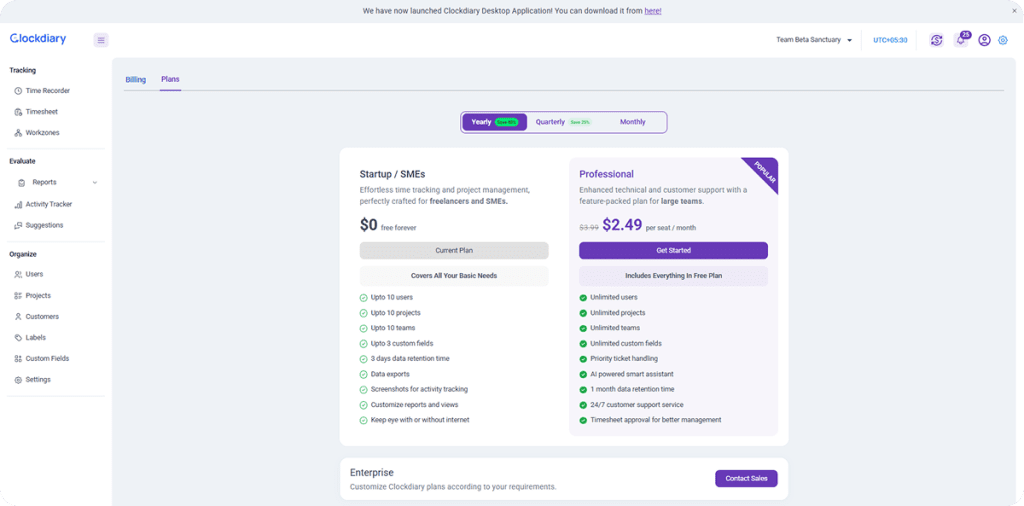
3. On the Subscription Page, select the Plans tab.
4. Review available plans and compare their features. 5. Choose your preferred plan and select a billing interval:
Monthly: Pay each month with maximum flexibility.
Quarterly: Pay every three months and save 25 percent.
Yearly: Pay once a year and save 40 percent.
6. After selecting your billing interval, click Get Started. A new window will open where you can adjust seat management and fill in your billing details, including:
Billing email and contact name
Address, country, postcode, and city
Local Tax ID (if applicable)
Note: Under Seat Management, you’ll see a default value equal to the number of users currently in your workzone. You cannot decrease this number — for example, if you have 6 users in your workzone, you can increase the seat count from 6 upward, but not reduce it below 6.
About Local Tax ID
If the customer has no Tax ID: Paddle (our payment partner) will automatically charge VAT or GST based on the customer’s billing country.
If the customer has a valid Tax ID:
Tax exemption or reverse charge: Paddle will not charge VAT or GST where local rules allow.
Correct invoicing: The Tax ID will appear on the invoice or receipt Paddle generates, ensuring tax compliance.
Regulatory reporting: Paddle uses the Tax ID for accurate reporting to local tax authorities.
Once all details are filled in, review your order summary and confirm the total amount to pay.
Click Continue to Pay to confirm your upgrade.
Your upgrade activates instantly. You can start using your new plan features right away without waiting for your current billing cycle to end.
How Prorated Billing Works
Clockdiary uses a fair proration system to ensure you pay only for what you use.
If you upgrade mid cycle, the unused balance from your previous plan is credited automatically.
The cost for the remaining period of your new plan is calculated based on your active seats.
From the next billing cycle, you will be billed according to your new plan and seat count.
💬 Example: If you upgrade from the Monthly Plan to the Quarterly Plan halfway through the month, your remaining balance is credited, and you only pay the difference for the new plan.
Checking Your Updated Plan
After upgrading, you can verify your new plan details:
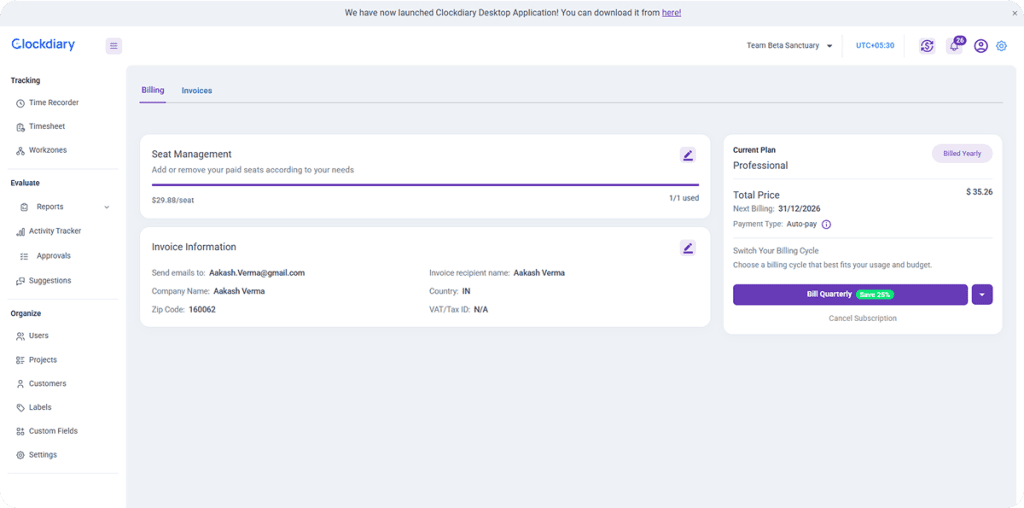
Go to Subscription → Billing.
Review your plan name, billing interval, and seat count.
Confirm that your plan status shows Active under the new subscription.
Key Takeaways
You can upgrade any time from Subscription → Plans.
Choose between monthly, quarterly, or yearly billing options.
All upgrades apply instantly with prorated billing.
You pay only for active user seats.
Seat adjustments can be made during or after the upgrade.