Find everything you need to get started with Clockdiary—learn about projects, teams, time tracking, and more.
View Categories
Understanding Billing & User Seats
Overview
Clockdiary’s billing system is designed to be simple, transparent, and fair. Your subscription cost depends on the number of active user seats in your workzone. This guide explains how billing is calculated, how user seats work, and how proration ensures you only pay for what you use.
What Are User Seats?
A user seat represents one active member in your Clockdiary workzone. Each person who has access to your workzone occupies one seat.
Key Points
Every active user requires one paid seat.
When a user is removed or archived, their seat becomes available for another member.
You can assign the free seat to a new user at no extra cost.
Seat count directly affects your billing total.
💡 Tip: If your workzone has 20 active users, you need 20 seats. Removing a user immediately frees up one seat for someone new.
Accessing Seat Management
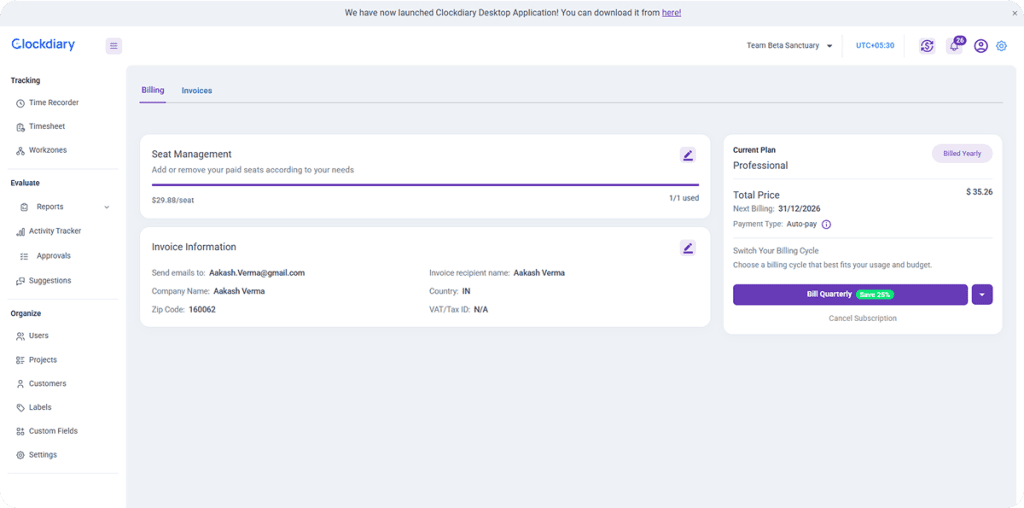
1. Log in to your Clockdiary workzone. 2. Click the Subscription icon in the top right corner of your dashboard.
3. On the Subscription Page, go to the Billing tab.
4. In the Seat Management section, click the Edit icon to adjust the number of seats.
5. Once you add or modify seats, the price automatically adjusts according to your selected plan. You’ll also see a horizontal progress bar indicating how many seats are currently assigned and how many remain unassigned.
For example, if you have added 16 seats, your total might show 17 seats in total, with 16 seats left to assign. The billing amount updates instantly to reflect your new seat count, giving you complete clarity over your subscription cost and available capacity.
Adding Seats
If your team is expanding, you can quickly add more seats to your plan:
Enter the number of additional seats you’d like to add.
Clockdiary will automatically calculate the prorated cost based on the remaining days in your current billing cycle.
The prorated amount is charged immediately.
Note: An Invite email is also counted as a seat.
Example: If you add 5 seats with 20 days left in your billing cycle, you’ll only pay for those 20 days. Starting from your next billing cycle, your total subscription amount updates automatically to include the new seat count.
Tip: You can always add more seats, but you can’t reduce the number of seats below your active user count.
Removing Seats
If you have unused seats that are no longer needed:
Enter the number of seats you wish to remove.
Clockdiary will calculate the prorated credit for each seat based on the remaining days in the billing cycle.
The credit amount is added to your Clockdiary Credit Wallet and will be automatically applied to your next billing cycle.
Important: If you cancel your subscription completely, any unused credits remaining in your wallet will be lost.
Reassigning Seats
When a user leaves your workzone, you don’t need to purchase a new seat for their replacement.
Simply archive the removed user’s account — this frees up their seat.
You can then invite a new user to occupy that seat without any additional cost.
This flexibility ensures that you always make full use of your purchased seats without overspending.
Who Can Manage Seats
Only the workzone owner can manage or adjust seats under Billing → Seat Management. Owners can:
Add new seats when the team grows.
Remove unused seats to reduce cost.
Reassign seats to new users.
⚙️ Note: Admins and Managers can’t view seat usage or modify billing details or seat count.
How Billing Works
Clockdiary calculates billing based on active user seats and your chosen billing interval (monthly, quarterly, or yearly).
Billing Logic
The price you pay = number of active seats × plan price per seat × billing interval.
Any time you add or remove users, billing updates automatically.
Each Workzone has its own separate subscription and billing details.
💬 Example: If your plan costs $10 per user per month and you have 15 active users, your monthly charge is $150.
How Proration Works
Clockdiary uses prorated billing so you always pay a fair amount for the time and seats you use.
When you add new seats mid cycle, you are charged only for the remaining days in that cycle.
When you remove seats, credits are issued for the unused portion and stored in your Credit Wallet.
These credits apply automatically to future invoices.
💡 Example: If you add two users halfway through a month, you’ll be billed for only half a month’s cost for those two seats.
Free vs Paid Workzones
Each workzone Owner has:
One Free Workzone, which includes:
Up to 10 users.
10 projects.
10 teams.
3 custom fields.
You can create unlimited Paid Workzones for larger teams or extended features.
If your workzone exceeds the free plan limits, you’ll need to upgrade to a paid plan.
Key Takeaways
Each active user occupies one paid seat.
Seat count directly determines your billing amount.
Billing updates automatically with proration for fairness.
Only workzone owners can manage seats.
Credits from removed seats apply automatically to future payments.