Skip to content
Clockdiaryclock diary
Menu
  • Pricing
  • Features
  • Blogs
  • Help Center
  • Contact Us
  • Download
  • Sign In
  • Sign up
  • Feature
  • Pricing
  • Testimonials
  • Instant Solution
  • Sign In
  • Book A Demo
  • Sign Up Free

Clockdiary Help Center

Find everything you need to get started with Clockdiary—learn about projects, teams, time tracking, and more.

Projects

  • How to Create a New Project
  • How to edit a project
  • How to Manage Project Access
  • How to Archive a Project
  • How to restore archived projects
  • How to assign project access to a member

Customers

  • How to Add a Customer
  • How to view customer details 
  • How to Edit Customer Details in Clockdiary
  • How to archive customer details
  • How to restore archived customers

Teams

  • How to Create a Group
  • How to Add Members to a Group
  • How to Remove Members from a Group
  • How to Add Members to A Team
  • How to Remove Members from Teams
  • How to Archive a Member in Teams
  • How to Assign a Role to a Member

Work Zones

  • How to add a new workzone 
  • How to update workzone settings
  • How to delete a workzone

Labels

  • How to add labels
  • How to archive or restore labels

Profile Settings

  • How to change password
  • How to change profile picture
  • How to edit my profile 

Time Recorder

  • How to create a Time Entry
  • How to Sign Up for Clockdiary (Step-by-Step Guide)
  • How to create a duplicate time entry

Timesheet

  • How to Set Up and Use the Timesheet Feature
  • How to Submit a Timesheet
  • How to Approve a Timesheet
  • How to Reject a Timesheet

Activity Tracker

  • How to Enable or Disable Screenshot Tracking
  • How to Use the Activity Tracker for Employee Monitoring

Subscription

  • How to Manage Subscription & Billing for Your workzone
  • How to Upgrade Your Plan in Clockdiary
  • Understanding Billing & User Seats
  • How to Switch Between Billing Intervals
  • How to Download Invoices & Manage Payments
  • How to Cancel Your Subscription
View Categories
  • Home
  • Clockdiary Help
  • Subscription
  • How to Download Invoices & Manage Payments

How to Download Invoices & Manage Payments

Overview

Clockdiary makes it easy to keep track of your billing history, download invoices for your records, and manage payment methods – all from one place.
Whether you need to review past payments, retry a failed transaction, or update your card details, everything can be done directly through your Subscription Page.

Accessing Your Invoices

  1. Log in to your Clockdiary workzone.
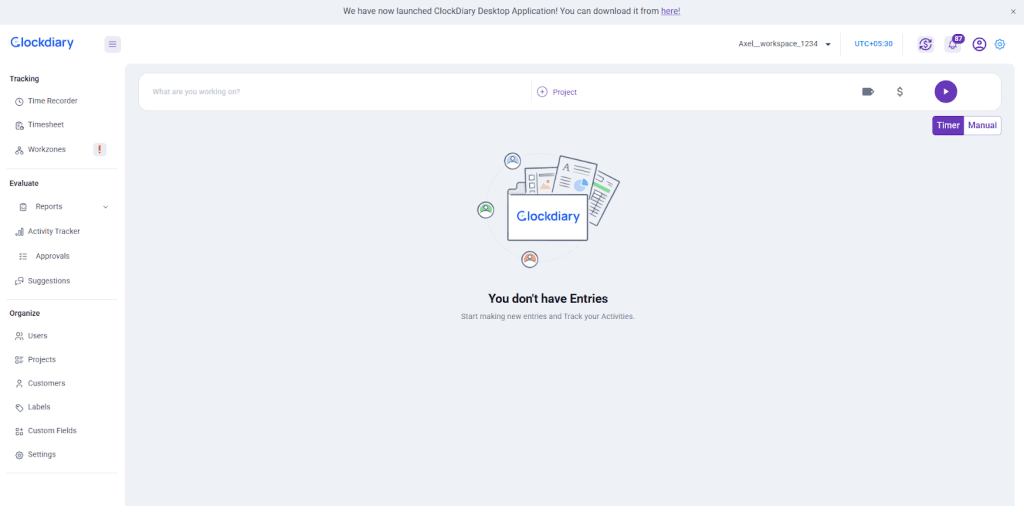
  2. Click the Subscription icon in the top right corner of your dashboard.
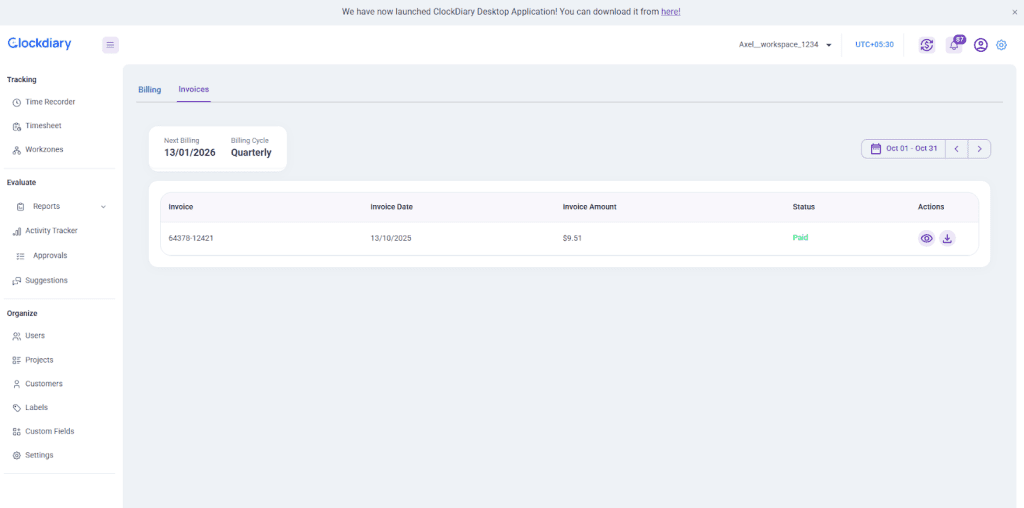
  1. On the Subscription Page, open the Invoices tab.
  1. You’ll see a complete list of all invoices linked to your workzone, including payment status and billing details.
  2. To download an invoice, click the Download icon next to the specific invoice you need — it will be saved instantly for your records.

Each invoice provides a detailed breakdown of your subscription, including the billing period, payment amount, number of seats, and any prorated adjustments.

Managing Payments

Clockdiary uses automatic billing (autopay) to simplify your payment process. All subscriptions renew automatically at the end of each billing cycle.

If your payment fails or your card expires, you can quickly resolve it from the same page.

To retry a failed payment:

  1. Go to the Invoices tab.
  2. Find the failed transaction (marked as Unpaid).
  3. Click Pay Now to retry the payment.
  4. If needed, update your card details before retrying.

Once updated, Clockdiary will automatically debit any pending payments and restore your workzone access.

Failed Payments & Frozen Workzones

If a payment is not completed within the allowed period:

  • Your workzone will temporarily enter a Frozen State.
  • In this mode, edit access and time tracking are disabled.
  • You can still access billing settings to make pending payments.

After the payment is successfully processed, your workzone automatically unfreezes, restoring full functionality.

Credit Wallet

Your Credit Wallet stores all credits generated from seat removals, downgrades, or prorated adjustments.

  • These credits are automatically applied to your next billing cycle.
  • You can view your available credit balance from the Billing tab under the Credit Wallet section.

Note: If you cancel your subscription entirely, any unused credits in your wallet will be lost.

Key Takeaways

  • Access invoices anytime from Subscription → Invoices.
  • Download detailed billing records for bookkeeping and compliance.
  • Retry failed payments instantly using the Pay Now button.
  • Update your payment details directly from the same page.
  • Workzones enter a Frozen State if payments fail but automatically unfreeze once resolved.
  • Credits from seat or plan changes are stored in your Credit Wallet and applied automatically to future payments.


Related Articles

  • How to Manage User Seats in Billing
  • How to Switch Between Billing Intervals
  • How to Cancel Your Subscription
  • Understanding Billing and User Seats

Share This Article :

  • Facebook
  • X
  • LinkedIn
  • Pinterest
How to Switch Between Billing IntervalsHow to Cancel Your Subscription
Clockdiaryclock diary
Keep Updated
Quick Links
  • Blogs
  • Pricing
  • Sitemap
  • Changelog
  • Terms of Use
  • Privacy Policy
  • Time Card Calculator
  • Military To Standard Time Converter
Help Docs
  • Projects
  • Teams
  • Customers
  • Work Zones
  • Profile Settings
  • Time Recorder
Features
  • Lock Time
  • Time Recorder
  • Manage Teams
  • Manage Projects
  • Multiple Work Time Zones
Time Tracking Solutions
  • For Lawyers
  • For Agencies
  • For Freelancers
  • For Accountants
  • With Screenshots
  • For Remote Teams
  • For payroll tracking
  • For Project Time Tracker
Contact Us
  • Contact Us
  • Book A Demo

Copyrights © 2026 | Clockdiary All Rights Reserved