Skip to content
Clockdiaryclock diary
Menu
  • Pricing
  • Features
  • Blogs
  • Help Center
  • Contact Us
  • Download
  • Sign In
  • Sign up
  • Feature
  • Pricing
  • Testimonials
  • Instant Solution
  • Sign In
  • Book A Demo
  • Sign Up Free

Clockdiary Help Center

Find everything you need to get started with Clockdiary—learn about projects, teams, time tracking, and more.

Projects

  • How to Create a New Project
  • How to edit a project
  • How to Manage Project Access
  • How to Archive a Project
  • How to restore archived projects
  • How to assign project access to a member

Customers

  • How to Add a Customer
  • How to view customer details 
  • How to Edit Customer Details in Clockdiary
  • How to archive customer details
  • How to restore archived customers

Teams

  • How to Create a Group
  • How to Add Members to a Group
  • How to Remove Members from a Group
  • How to Add Members to A Team
  • How to Remove Members from Teams
  • How to Archive a Member in Teams
  • How to Assign a Role to a Member

Work Zones

  • How to add a new workzone 
  • How to update workzone settings
  • How to delete a workzone

Labels

  • How to add labels
  • How to archive or restore labels

Profile Settings

  • How to change password
  • How to change profile picture
  • How to edit my profile 

Time Recorder

  • How to create a Time Entry
  • How to Sign Up for Clockdiary (Step-by-Step Guide)
  • How to create a duplicate time entry

Timesheet

  • How to Set Up and Use the Timesheet Feature
  • How to Submit a Timesheet
  • How to Approve a Timesheet
  • How to Reject a Timesheet

Activity Tracker

  • How to Enable or Disable Screenshot Tracking
  • How to Use the Activity Tracker for Employee Monitoring

Subscription

  • How to Manage Subscription & Billing for Your workzone
  • How to Upgrade Your Plan in Clockdiary
  • Understanding Billing & User Seats
  • How to Switch Between Billing Intervals
  • How to Download Invoices & Manage Payments
  • How to Cancel Your Subscription
View Categories
  • Home
  • Clockdiary Help
  • Subscription
  • How to Switch Between Billing Intervals

How to Switch Between Billing Intervals

Overview

Clockdiary makes it easy to change your billing cycle at any time. Whether you prefer the flexibility of monthly payments or want to save more with quarterly or yearly billing, you can manage everything directly from your Subscription Page. Your workzone continues running smoothly without any interruptions during the change.

How to Switch from Your Current Plan to Another.

  1. Log in to your Clockdiary workzone.
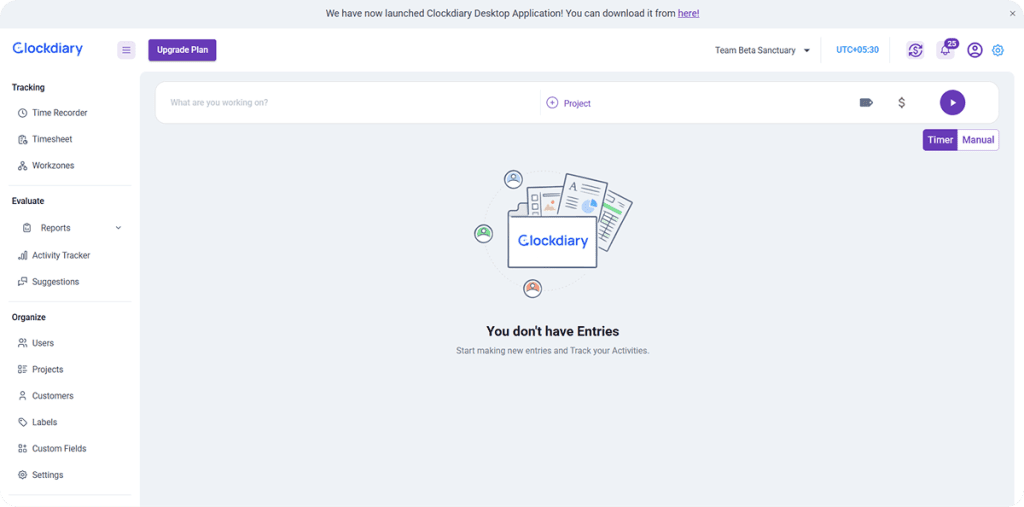
  2. Click the Subscription icon in the top right corner of your dashboard.
Clockdiary Home Page
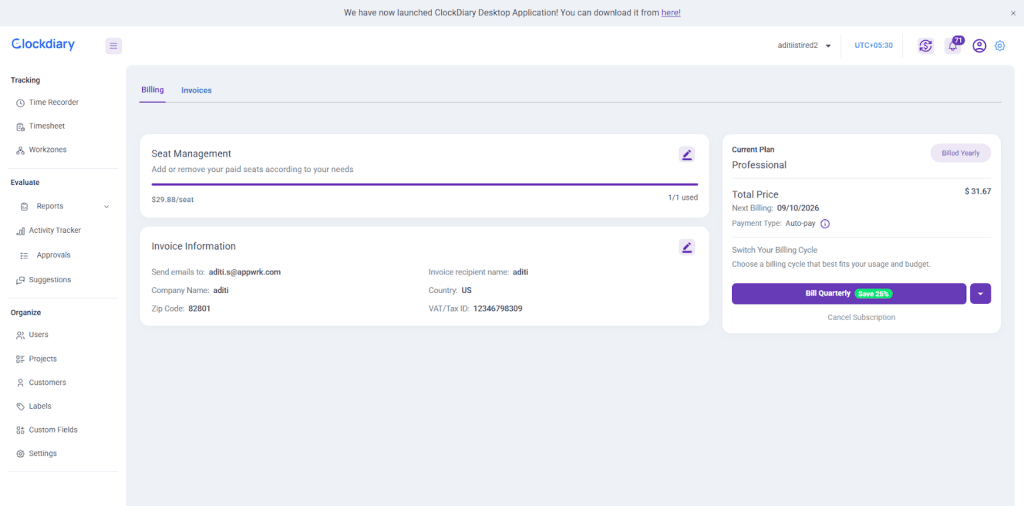
  1. On the Subscription Page, open the Billing tab.
  1. From there, review your current billing cycle and select a new interval when needed.
  1. Once you’ve switched successfully, if you decide to return to your previous plan, you can easily do so. A Switch Initiated option will appear, allowing you to revert to your earlier billing plan with just one click.

Upgrading to Quarterly or Yearly Billing

If you are currently on a monthly or quarterly plan and wish to switch to a longer billing cycle:

  • You can upgrade at any time without waiting for your current cycle to end.
  • The amount already paid for the remaining days in your current billing period will be prorated and automatically credited toward your new plan.
  • You only pay the difference for the new billing interval.

Example:
If you are halfway through your monthly cycle and decide to upgrade to a yearly plan, the unused portion of your monthly payment will be credited toward your annual invoice.

Downgrading to a Shorter Billing Cycle

If you want to move from a longer billing plan to a shorter one such as yearly to quarterly or quarterly to monthly:

  • The change will take effect after your current billing cycle ends.
  • You can continue using all paid features until your current billing period completes.
  • Once the cycle ends, your new billing interval begins automatically.
  • No credits are lost; your subscription simply transitions naturally to the shorter billing option.

Why Switch Billing Intervals

Clockdiary offers flexible billing cycles to match your team’s preferences and budget goals:
Monthly Billing: Ideal for teams that want maximum flexibility with pay-as-you-go convenience.
Quarterly Billing (Save 25%): A great balance between flexibility and cost savings, billed every three months.
Yearly Billing (Save 40%): Perfect for growing teams that want the lowest rates and simple annual budgeting.

Key Takeaways

  • You can change your billing cycle anytime from the Subscription → Billing page.
  • Upgrades apply prorated credits immediately for unused days.
  • Downgrades take effect only after the current billing cycle ends.
  • All billing adjustments are handled fairly with automatic proration.
  • Quarterly and yearly plans include built-in savings of 25% and 40% respectively.

Related Articles

  • How to Upgrade Your Plan in Clockdiary
  • Understanding Billing and User Seats
  • How to Download Invoices and Manage Payments
  • How to Cancel Your Subscription

Share This Article :

  • Facebook
  • X
  • LinkedIn
  • Pinterest
Understanding Billing & User SeatsHow to Download Invoices & Manage Payments
Clockdiaryclock diary
Keep Updated
Quick Links
  • Blogs
  • Pricing
  • Sitemap
  • Changelog
  • Terms of Use
  • Privacy Policy
  • Time Card Calculator
  • Military To Standard Time Converter
Help Docs
  • Projects
  • Teams
  • Customers
  • Work Zones
  • Profile Settings
  • Time Recorder
Features
  • Lock Time
  • Time Recorder
  • Manage Teams
  • Manage Projects
  • Multiple Work Time Zones
Time Tracking Solutions
  • For Lawyers
  • For Agencies
  • For Freelancers
  • For Accountants
  • With Screenshots
  • For Remote Teams
  • For payroll tracking
  • For Project Time Tracker
Contact Us
  • Contact Us
  • Book A Demo

Copyrights © 2026 | Clockdiary All Rights Reserved